IKnewU
  • Home
  • NSFW AI Video Generator
  • NSFW AI Image Generator
  • Undress
  • Undress Video
  • Clothes Changer
  • Face Swap
  • Image to Video
  • AI Tools
    • AI Workflows

      • AI Video Tools
      • Text to Video
      • Video Editor
      • Video Extend
      • AI Image Tools
      • Text to Image
      • Image to Image
    • AI Models

      • AI Models
      • GPT Image 2
      • Flux 2 Pro
      • Hailuo 02
    • Templates / Resources

      • Action & Motion
      • Blog & Guides
    • Uncensored AI Tools
    • View all
  • Pricing
Settings
Language
English
  • English
  • 日本語
  • 한국어
  • Español
  • العربية
  • Français
  • Deutsch
  • Русский
  • Nederlands
  • Italiano
ThemeAtelier
NSFW Video GeneratorNSFW Image GeneratorPrivacy policyTerms of serviceRefund policy
IKnewU
  • Home
  • For You
  • Create
  • Pricing
  • More
  • Home
  • For You
  • NSFW AI Video Generator
  • NSFW AI Image Generator
  • Anime / Manga
  • Video Edit
  • Video Extend
  • NSFW AI Image Generator
  • Undress
  • Undress Video
  • Clothes Changer
  • Face Swap
  • AI Tools
  • Generate
  • Agent
  • Explore
  • Home
  • For You

Create & chat

  • NSFW AI Video Generator
  • NSFW AI Image Generator
  • Anime / Manga
  • Video Edit
  • Video Extend+5s
  • Generate
  • AgentBeta
  • Explore

Public discovery

  • NSFW AI Image Generator
  • Undress
  • Undress Video
  • Clothes Changer
  • Face Swap
  • AI Tools
Upgrade for more

    Model & settings

    Aspect Ratio

    Duration

    5s

    Resolution

    Scene.generatorBar.advancedVideo.title

    Scene.generatorBar.advancedVideo.audioHelp

    Upload reference

    0/1

    Prompt

    Prompt
    0/2000
    Credit cost

    Generate 1 videos · 35 credits total

    This run is 5s and billed for 5s. This model max is 15s. Duration written in the prompt does not change the length.

    Urban Night Bus

    8800

    Camaro Street Style

    8800

    Woman in pink gown on conch shell beach

    1314

    Woman walks to camera, flames behind.

    621

    Miniature City

    3802

    Man transforms into Venom and jumps

    3916

    Cat on motorcycle

    2348

    Cat grabs wizard hat and staff

    1555

    Santa skateboards in Miami

    2298

    Bride and groom dance on book pages

    2272

    Subject scans and dashes away at high speed.

    1829

    Moon Prism Hero

    9396

    Bridge Mecha Run

    7451

    Lightning Titan Punch

    6936

    Sci-Fi World Shift

    4618

    Divine Palm

    6846

    Bird Man Fall

    2911
    1. Home
    2. ›AI Tools
    3. ›AI Video Tools
    4. ›Image to Video

    VideoAny AI

    Image to video AI from a still you upload

    What is this image to video workbench? Upload still photos you are authorized to use as the first frame or reference image, write a motion prompt, then generate. It is not a text-only prompt box. The credit cost appears before you submit.
    VideoAny
    Veo 3
    Kling AI
    PixVerse
    Vidu AI
    Illustrative city motion

    Illustrative city motion

    Illustrative close-up texture

    Illustrative close-up texture

    Illustrative character moment

    Illustrative character moment

    From a still you upload to a motion draft

    A paragraph alone will not open this image to video path. Start with a still that already holds the subject you want to keep, then generate. The clips below reuse the text-to-video template media; they are illustrative, not verified image to video outputs.
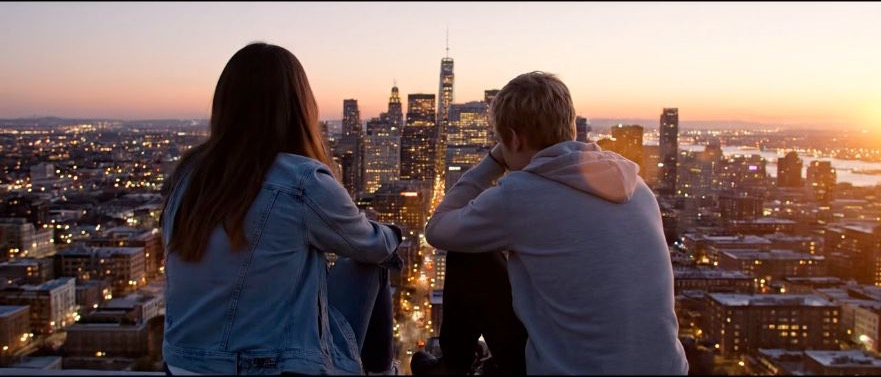
    Illustrative motion clip, not a verified image to video output
    Template example clip
    ✦A cinematic city scene unfolds as the camera follows two friends at sunset...Warm evening light moves across the skyline in a gentle cinematic shot...↗

    Start from the uploaded still

    Generate a draft, then tighten the motion notes

    You do not need a finished storyboard. Keep the subject from the still, describe one camera or motion change, generate a short draft, then change one instruction at a time. Recheck the displayed credit cost after duration or resolution changes.

    What you can actually change on this image to video path

    Keep the uploaded still, the motion prompt, and the duration or resolution choice in one loop. Do not treat this as a blank-page text-to-video generator.

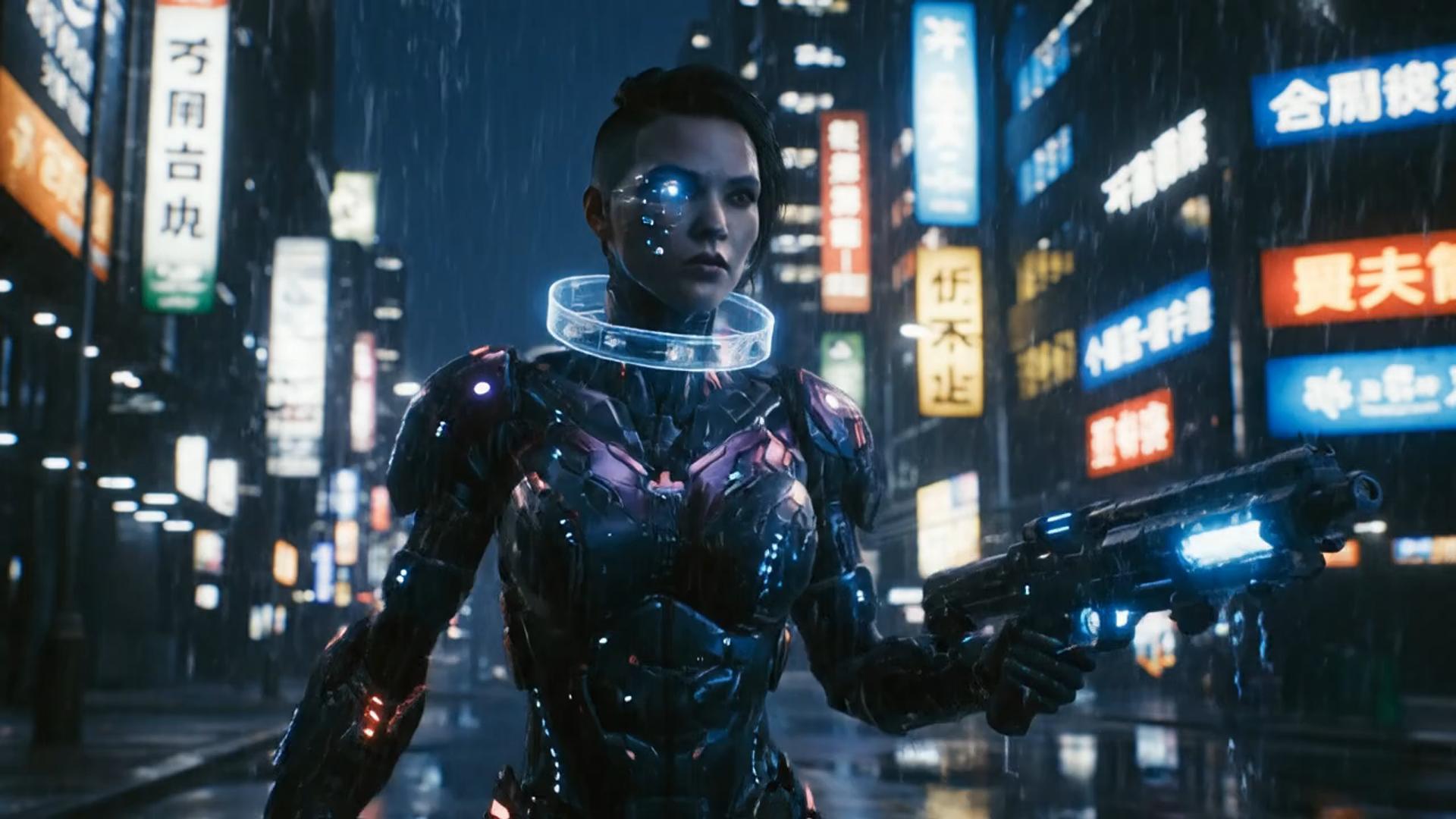
    ✦A cinematic character walks through a neon city in the rain...The camera follows the character as the lights begin to glow...↗
    01

    Keep the subject from the still, then ask for motion

    This is not a story typed into an empty box. The still has to already hold the crop, lighting, and subject you want to keep. Prompt the motion, then judge the draft against that upload.

    ✦A baby bird hides under its mother’s wing as rain falls softly...Warm light moves across the feathers in a gentle close-up shot...↗
    02

    Iterate duration and resolution with the credit cost in view

    Stay in this image to video workbench from upload to History. Changing length or resolution can change the displayed credit cost. Read that number before you generate again.

    ✦The viewer looks up, the character turns toward the camera...A hand-held camera gently pushes in as the scene changes...↗
    03

    Describe the motion without leaving the i2v tab

    Name the camera, the motion, and what must not change. This page does not open a generic text-to-video catalog. Availability follows the workbench selector.

    ✦Create a polished video from your idea, right in the browser...Review the result, refine the prompt, and generate another version...↗
    04

    Stay in the browser workbench

    No extra editor install is required. Open this page, upload still photos, write a motion prompt, and manage finished clips in History.

    Who this still-to-clip image to video path is for

    Use this path when a still already holds the subject you want to animate. It is not a substitute for a generic text-to-video page, and it does not promise every request will run.
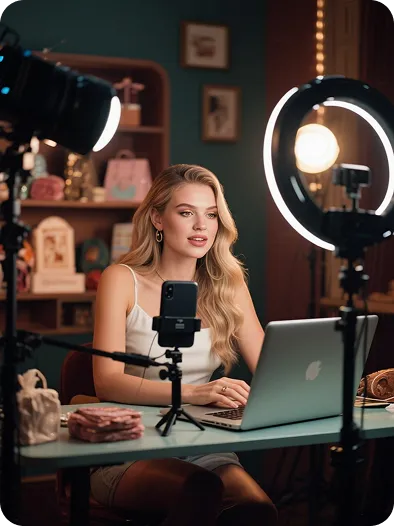
    Creators who already have a still

    Creators who already have a still

    When the subject already exists in a photo, a short motion note is enough to test a social take. A script without a still belongs on another workflow.
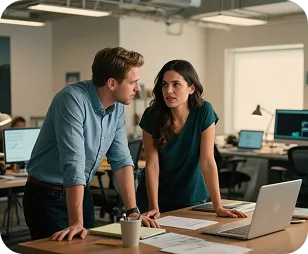
    Brands starting from a pack shot

    Brands starting from a pack shot

    A catalog still can take a small camera move. Compare the silhouette to the upload after every run.
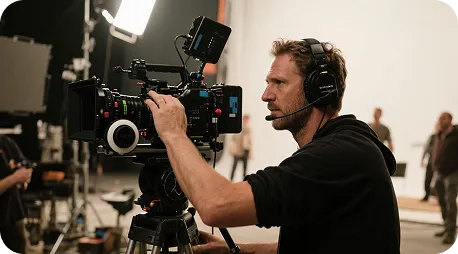
    Directors checking a neighboring take

    Directors checking a neighboring take

    Use a locked still to preview a camera idea before you commit to a longer shoot. The template clips are not dailies from this workbench.
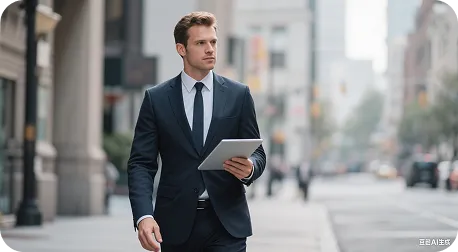
    Marketers comparing still-to-clip versions

    Marketers comparing still-to-clip versions

    Generate a few image to video versions from the same still, then pick a rhythm. Extra takes still spend the credits shown for that run.
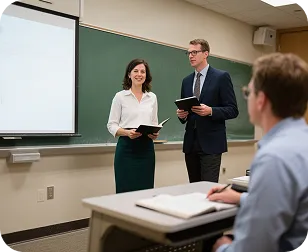
    Instructors animating a still

    Instructors animating a still

    A clear still can take a simple pan or zoom. Keep labels readable, and do not ask the page to invent a lecture from text alone.

    Workbench notes

    A real iteration loop, from an uploaded still to a first take

    Write the keep-and-move notes first, generate, then use the draft to correct the next prompt. The cards below show common work habits. They are not reviews of named users, and they are not proof of a specific clip.

    He Yuxuan

    E-commerce advertising operator

    “I keep one product still, write a short motion note, generate a few takes, and pick the one whose rhythm fits the listing.”

    Gu Zhiyuan

    Short-form video creator

    “One still gets me to a motion draft faster than starting from a blank timeline, as long as I keep the subject honest.”

    Li Peishan

    YouTube creator

    “I reuse the same still and only change camera language, which makes the next image to video take easier to compare.”

    Xu Ruizhe

    Student creator

    “I test one motion direction at a time from the same still instead of rewriting the whole scene.”

    He Zhiyu

    Founder

    “One still plus a motion note is a faster promo draft than building keyframes by hand.”

    Wu Zhiqing

    Instructor

    “A diagram still can take a simple camera move so a process is easier to show. That is a workflow note, not a classroom result claim.”

    Frequently asked questions

    Common questions about this image to video workbench path.

    What is image to video on this workbench?+−

    On VideoAny it is a still-to-clip path, not a text-to-video engine. You upload still photos, treat them as the first frame or reference image, write a motion prompt, and generate on the locked i2v workbench. Current model and service rules still apply.

    How long does an image to video clip take to generate?+−

    Wait time follows duration, resolution, and the current queue. After you submit, watch History for status, then preview or download when the task finishes.

    Why does the clip differ from the motion notes?+−

    The still already holds the subject. Keep that identity, name a camera move if you need one, and avoid asking for a pose the upload never held. If the keep list drifted, simplify the next run instead of stacking adjectives.

    Can I revise a clip I do not like?+−

    Yes. Keep the same still, change one camera or motion note, and generate again. Compare versions in History. A new still is only needed when the source subject is wrong.

    Is image to video a free run with no credit cost?+−

    You can open the workbench and inspect the locked i2v tab. Available output follows your account, and the credit cost for this run is shown before you submit.

    Can I use a generated image to video clip commercially?+−

    Check rights to the uploaded still, the selected model terms, and your VideoAny plan before any commercial use. This page does not grant a commercial license.

    Still-to-clip walkthrough

    Three steps from an uploaded still to a clip

    How to run this image to video path

    VideoAny image-to-video and timeline editing

    Choose by starting material and task: generate motion from a still and a prompt, or arrange existing media in an editing project. A timeline editor's controls, export options, and pricing depend on the product you choose.

    VideoAny image-to-video and timeline editing
    Workflow stepVideoAny image-to-videoTimeline editing
    Starting pointUpload a still, add a motion prompt, and choose an available image-to-video modelImport source clips, stills, or audio and arrange them on a timeline
    Visual directionUse the uploaded still and motion notes to guide the generated clipWork with source material and the visual tools offered by the selected editor
    Creative controlsDescribe subject motion and camera movement alongside the uploaded stillUse the selected editor's timeline and clip controls to shape the sequence
    Effects and transitionsDescribe the desired motion or look in the generation promptAvailable effects and transitions depend on the editor
    Core workflowGenerate a new clip from a still and a motion promptAssemble and edit source media into a sequence
    RevisionsChange the motion prompt or supported settings, then generate another versionRevise the editing project and export another version
    Processing timeGeneration time varies with the model, settings, and queueExport time varies with the project, editor, and processing setup
    OutputClip duration and resolution follow the selected model's optionsExport options depend on the editor and source media
    Typical taskExplore motion from an existing stillSequence, cut, or combine media for an edit
    ReviewPreview completed clips and download them from HistoryReview the editing project or its exported file
    Pricing modelThe workbench displays the credit cost before generationLicensing and subscription terms vary by editor

    More VideoAny video workflows

    If you need a different source type, open the matching VideoAny workflow. This page stays on image to video from a still.
    Image to video
    Image to video→
    VideoAny image to video from a still
    VideoAny AI

    Start from a still you are authorized to use

    Upload an authorized still as the first frame or reference image, then review the clip in History. Each run spends the credits shown before you submit.

    View pricing

    More tools for this workflow

    All AI toolsUncensored AI Tools

    Choose a workflow, then explore related tools, scenes, and model information.

    AI video generators

      Related workflows

      • Image to Image
      • Text to Video
      • Video Editor
      • Video Extend

      Related tools

      • AI Kiss Generator
      • AI Hug Generator
      • Motion Control

      Blog & Guides

      • AI Video Generator Guide: Text & Image to Video
      • Getting Started with AI Video Generation on IKnewU
      Next stepBack to AI Tools

      Explore More AI Image Tools

      • Dots video effects
      • GPT Image 2 Generator
      • GPT Image 2.5 Version Guide
      • Image 2.5 Generator
      • image2.5 Name Guide
      • Seedance 3.0 status tracker
      IKnewU

      IKnewU | AI girlfriend pictures and short clips

      [email protected]
      AI Image Tools
      • View all
      • Text to Image
      • Image to Image
      AI Video Tools
      • View all
      • Text to Video
      • Image to Video
      • Video Editor
      • Video Extend
      Creative Tools
      • View all
      • NSFW AI Video Generator
      • NSFW AI Image Generator
      • Undress
      • Undress Video
      • Clothes Changer
      • Face Swap
      • Undress Templates
      • Uncensored AI Tools
      • Motion Control
      • AI Hug Generator
      AI Models
      • View all
      • GPT Image 2
      • Flux 2 Pro
      • Hailuo 02
      Templates / Resources
      • View all
      • Action & Motion
      • Blog & Guides
      Company & Legal
      • Pricing
      • About
      • Contact
      • Privacy
      • Terms
      • Refund
      Public discovery

      Explore AI tools by task

      All AI toolsUncensored AI Tools

      AI image generators

        AI anime generators

          AI video generators

            AI models

              This website is an independent third-party platform. We are not affiliated with, endorsed by, or officially representing any AI model providers referenced on this site. All trademarks and brand names belong to their respective owners.

            • AI Kiss Generator
            • © 2026 IKnewU. All rights reserved.